How to Set Up a Dual Monitor System for Gaming
1 June 2026
If you're a gamer, you’ve probably seen those slick dual monitor setups on YouTube or Reddit and thought, “Man, that looks amazing.” Well, it does — and the best part? It’s not just about aesthetics. Having two screens can seriously level up your gaming experience. Whether you're deep into immersive RPGs, streaming on Twitch, or juggling Discord and Spotify while grinding in Apex Legends, a dual monitor setup can make everything smoother and more fun.
Now, if the thought of adding a second screen makes you nervous — don’t worry. You don’t need to be a tech wizard to make it happen. I’ve got you. In this guide, we’ll walk through everything you need to know about how to set up a dual monitor system for gaming — step by step, with zero fluff and no techy talk that makes your brain hurt. Let’s get into it!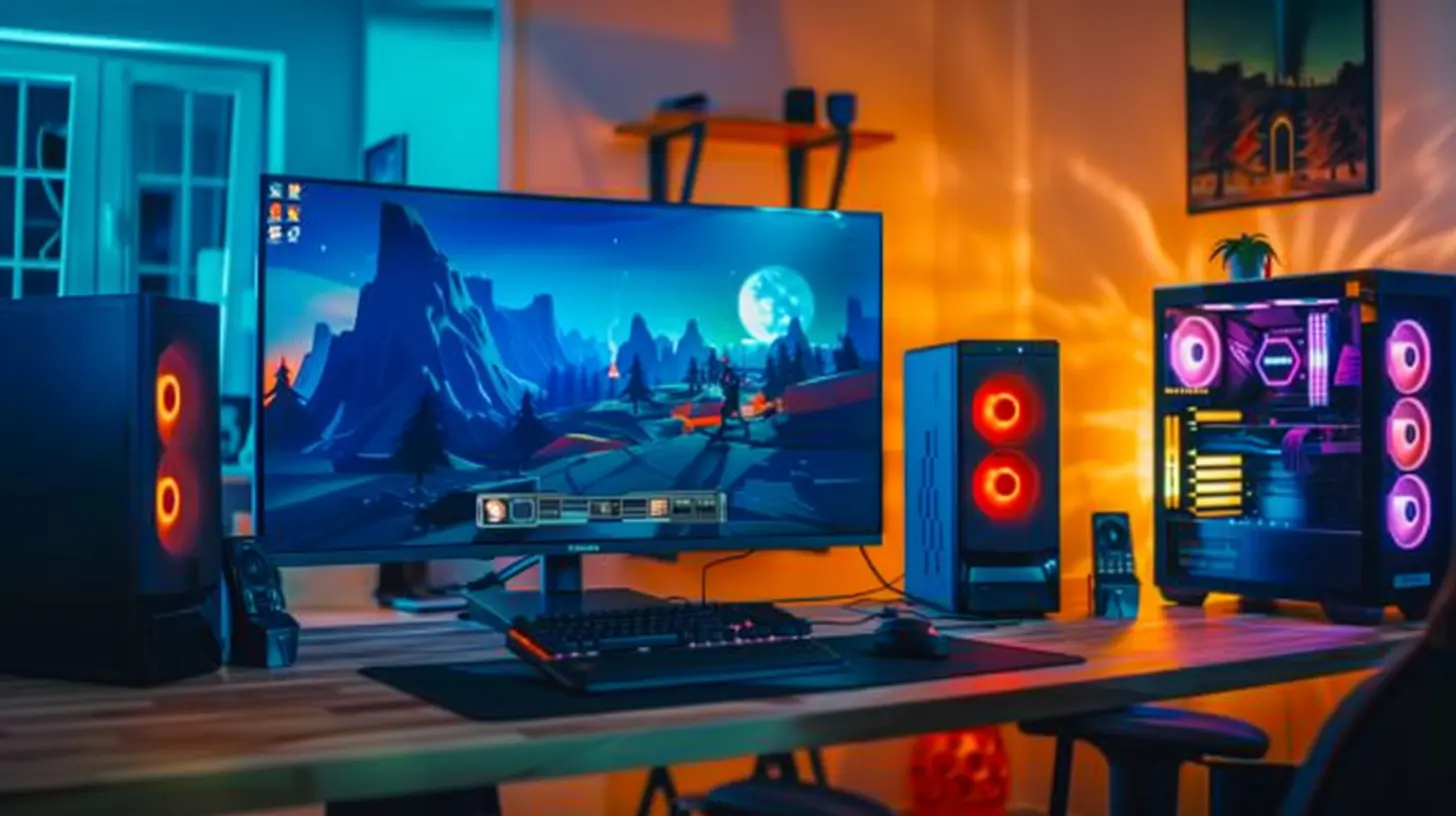
Why Go Dual Monitor for Gaming?
Before we dive into the how-tos, let’s talk about the “why.” It’s important to know what you’re actually getting out of your setup.- Multitasking Made Easy – One screen for your game, the other for chat, tutorials, Spotify, or OBS.
- Better Streaming Experience – If you’re into streaming, managing your stream and chat on a second screen is a game changer.
- More Productivity (Surprisingly) – Off-game hours? A second screen is perfect for school, work, or content creation.
- Immersion and Field of View – Some games allow dual monitors for an ultra-wide experience. Imagine pure visual heaven!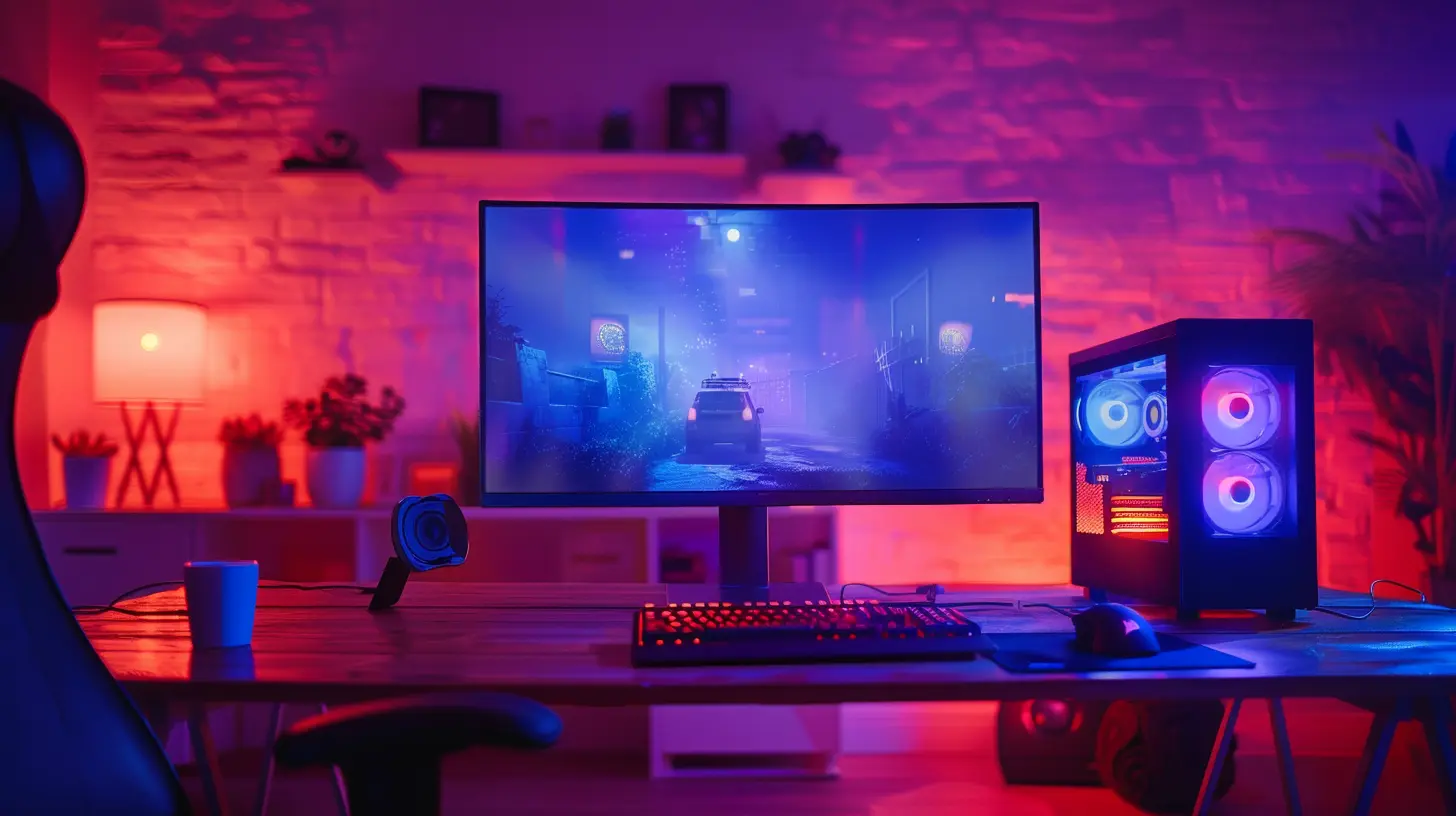
Step 1: Check Your PC Specs and Graphics Card
This is the only bit where we need to get a tiny bit “techy,” but I promise it’s simple. To run dual monitors, your PC needs to support them. So, let’s start with the basics.✅ What to Check:
- Graphics Card Outputs – Look at the back of your PC. Does your GPU (graphics card) have two or more display ports? Common ones are HDMI, DisplayPort, and DVI.- GPU Power – Is your graphics card strong enough to handle both your game and the second screen content? Most mid-range and high-end GPUs are more than capable. Got a GTX 1660 or better? You’re golden.
- Drivers Updated? – Trust me, the most annoying problems usually come from outdated drivers. Hop over to NVIDIA or AMD’s website and make sure you’ve got the latest GPU drivers installed.
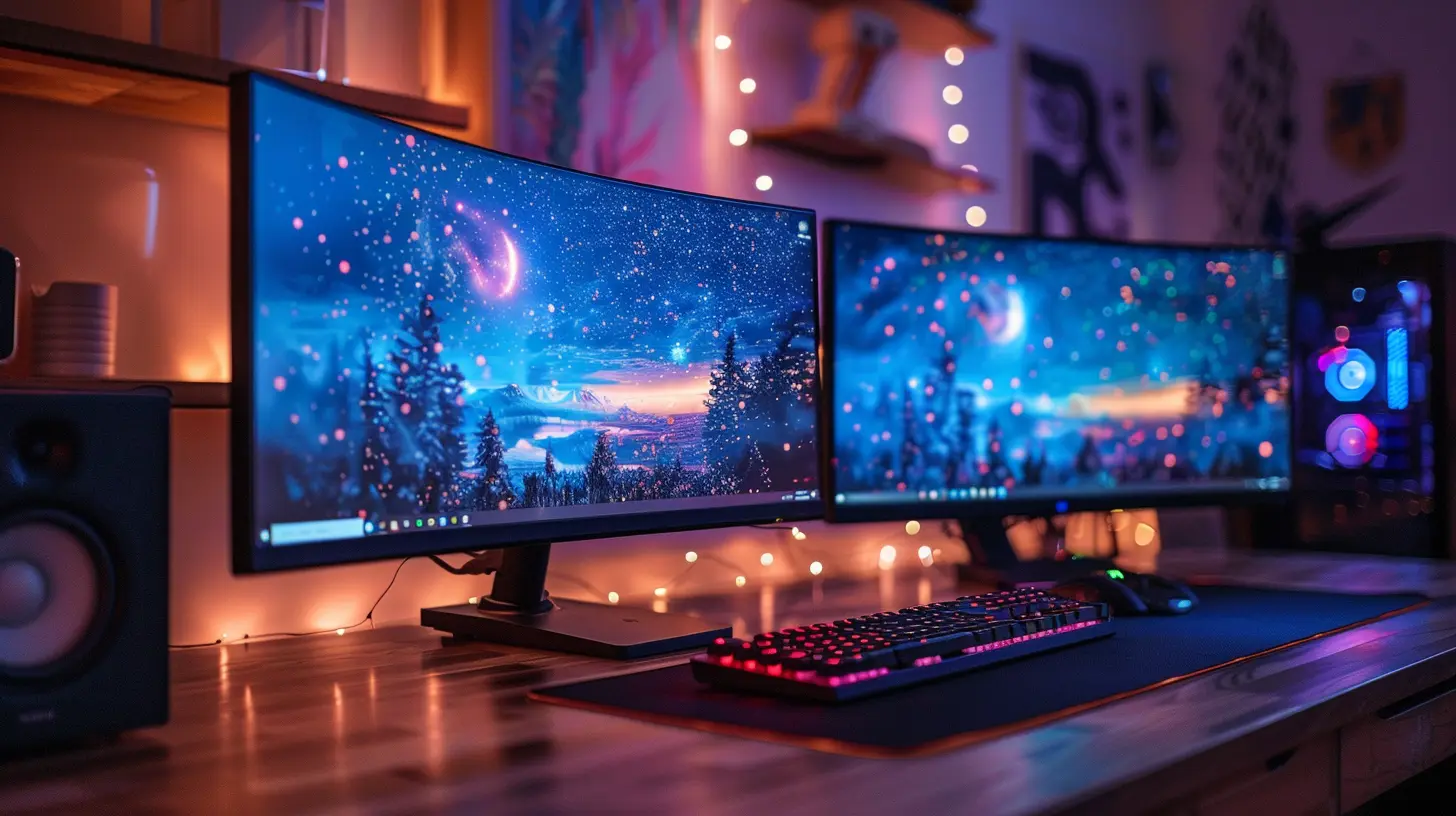
Step 2: Pick the Right Monitors
Choosing your second monitor isn’t just about matching your current screen. It’s about getting what fits your needs and your desk space.?️ Tips for Choosing:
- Same Resolution = Best Experience – Using two monitors with the same resolution keeps your desktop layout clean and your cursor transition smooth.- Refresh Rate – You want your primary gaming monitor to have the higher refresh rate. The second one? Doesn’t need to be fancy.
- Size and Mounting – Make sure your desk can handle two screens. Consider monitor arms if you’re short on space.
Need a recommendation? Use your best monitor for gaming and a more affordable one for the side tasks. No need to break the bank on a second screen.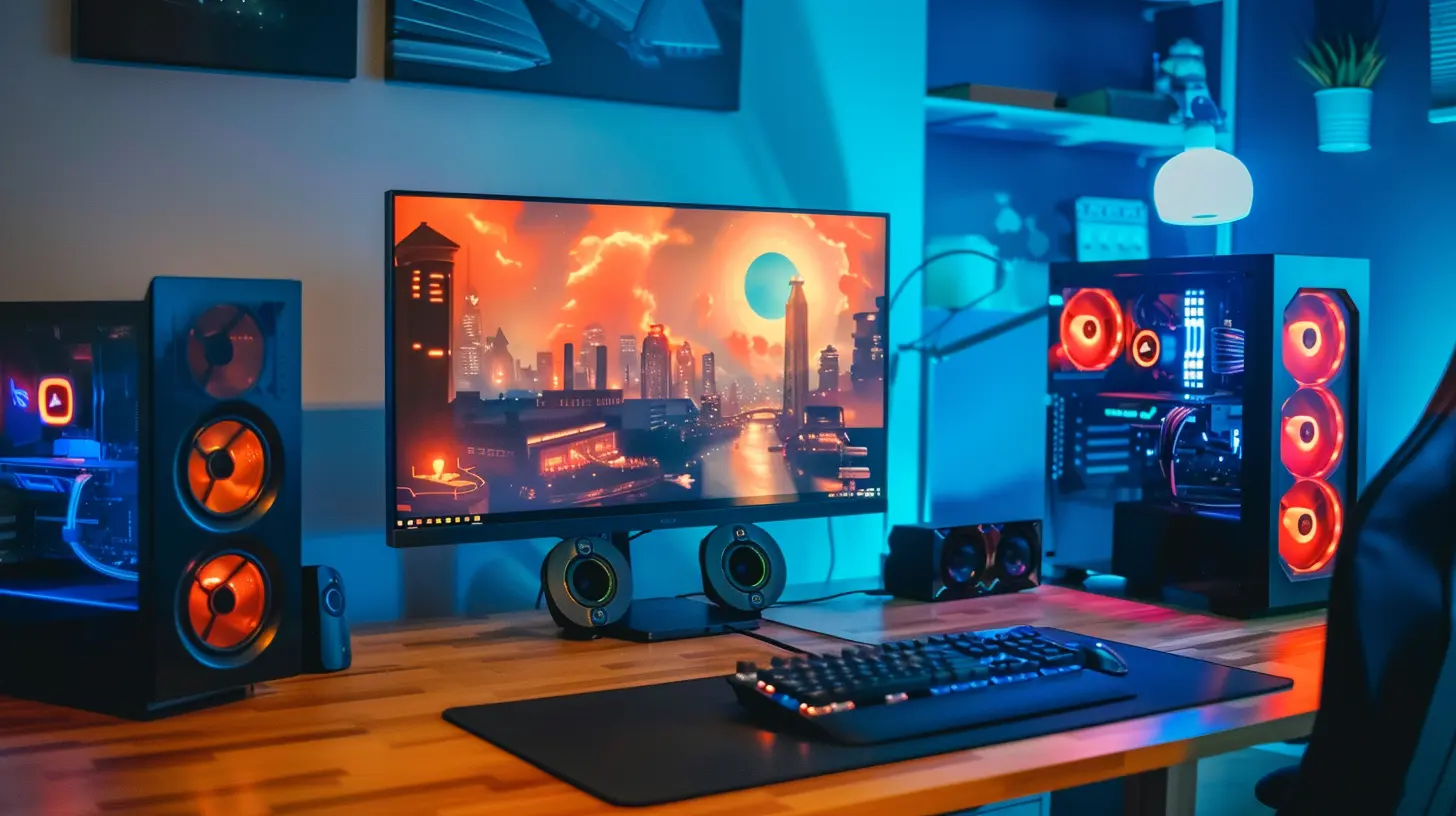
Step 3: Connect the Dual Monitors
Okay, let’s plug things in. This part's easier than assembling IKEA furniture — promise.? How to Do It:
1. Turn off your PC – Always a good idea before plugging in new hardware.2. Connect both monitors – Use the appropriate cables. HDMI is super common, but DisplayPort is great too.
3. Turn on your PC – Windows should detect both monitors automatically. You might see your desktop duplicated. That’s normal.
4. Right-click the desktop and go to Display Settings
5. Set the monitors to Extend – This lets you use them as two separate screens, not duplicates.
6. Drag and drop the monitor icons – Arrange how they sit on your desk in the software too (left/right/top/bottom).
Ta-da! Your dual monitor setup should now be live.
Step 4: Adjust Display Settings for Gaming
Now that both monitors are up and running, time to tweak things so they work the way you want them to. Your system might pick the wrong display as the primary one. Let’s fix that.? Customize Your Setup:
- Go to Display Settings → Select your main screen → Tap “Make this my main display”- Adjust resolutions so they match your monitors
- If you’re gaming on the higher refresh rate monitor, make sure it’s running at its full potential. Go to Advanced Display Settings and confirm it’s at 120Hz, 144Hz, or 165Hz — whatever it supports.
Remember: Your primary screen should be front and center. The secondary one can be off to the side at a comfortable viewing angle.
Step 5: Optimize In-Game Settings
Here’s the tricky bit — most games still only play on one monitor. And that’s a good thing, because ultra-wide across two monitors causes a weird bezel in the middle of your screen. That ain’t it.? Game Settings Tips:
- Set Fullscreen or Borderless Windowed – Borderless windowed makes it easier to move your cursor between screens.- Disable second-screen notifications if they’re distracting mid-game (you don’t need to know Karen posted another gym selfie on Facebook while you’re sniping).
- Use third-party apps for extra control — apps like DisplayFusion or NVIDIA Surround offer even more customization if you want to get fancy.
Step 6: Use It Like a Pro
Now that everything’s running, don’t just let that second monitor sit there like wallpaper. Use it smartly.Here’s How I Use Mine:
- Left monitor: The game- Right monitor: Discord, music (yes, lo-fi beats to game to), and OBS when I’m streaming
You can also throw in:
- Twitch chat
- Reddit for tips
- Google for quick in-game strategy lookups
- Monitoring your PC temps or performance with MSI Afterburner
It's like having a digital command center at your fingertips.
Common Dual Monitor Problems (and Fixes)
Okay, sometimes your system might act up. Don’t panic — every problem has a pretty simple fix.? Problem 1: Second screen is black or not detected
- Check the cable.- Try another port on your GPU.
- Make sure you’re on the right input source (HDMI 1 vs HDMI 2, etc.).
? Problem 2: Mouse won’t move between monitors properly
- Go back to Display Settings.- Drag the monitor icons to properly match their physical arrangement.
? Problem 3: Games minimize when clicking on the second screen
- Use Borderless Windowed Mode in your game.- Try third-party tools like "Dual Monitor Tools" or "Cursor Lock" to manage mouse behavior.
Every setup has hiccups. Give yourself time to adjust, and it’ll soon become second nature.
Bonus: Accessories That Make Dual Monitor Gaming Even Cooler
You’ve got the setup. Want to make it next-level awesome? A few extras can help.? Must-Have Accessories:
- Monitor Arm Mounts – Free up desk space and give you godlike control over angles.- RGB Lighting Strips – Behind your monitors for that sweet ambient glow.
- Extended Mousepad – Cover edge-to-edge under your monitors for extra aesthetic.
- USB Hubs – More screens = more peripherals = more USB ports needed.
Remember, building your battlestation isn’t just for looks. A clean and ergonomic setup helps you play better and longer — without the back pain.
Final Thoughts: It's Totally Worth It
Setting up a dual monitor system for gaming can feel like a small project, but man, the payoff is huge. Once you’ve got your screens dialed in, you’ll wonder how you ever lived with just one. It’s like going from riding a bicycle to driving a twin-turbo sports car — there’s no going back.Whether you're streaming, grinding ranked matches, watching YouTube while waiting in game lobbies, or just chatting with friends, you’re gonna love how much easier and more immersive everything feels.
Take the leap. Your inner gamer deserves it.
all images in this post were generated using AI tools
Category:
Gaming HardwareAuthor:

Lana Johnson
Discussion
rate this article
1 comments
Vivian McRae
Dual monitors elevate your gaming experience. Follow these steps and maximize your setup's potential for immersion.
June 13, 2026 at 4:01 AM