How to Safely Clean and Maintain Your Gaming PC
11 June 2026
Hey there, fellow gamer! ?
So, you've sunk a small fortune into building the ultimate gaming rig. RGB lights, a high-end GPU, water cooling… the works! But let me ask you this — when was the last time you gave your gaming PC a proper clean-up?
If you're scratching your head right now, don't worry — you're not alone. Cleaning and maintaining your gaming PC is one of those things we forget until our fans start sounding like jet engines or our temps skyrocket during a casual round of Apex Legends.
Well, that ends today! In this guide, I’m going to walk you through everything — yep, everything — you need to know about how to safely clean and maintain your gaming PC, all without breaking anything or losing your save files.
Ready to make your gaming rig sparkle? Let's dive in!
Why Cleaning Your Gaming PC is Super Important
Imagine trying to run a marathon with a thick wool sweater on. That’s what your PC feels like when it's coated in dust. Over time, dust builds up inside your case, clogging fans, trapping heat, and just making your rig work harder than it needs to.Here’s why regular maintenance matters:
- Keeps your components cool – Dust traps heat, and heat is the enemy of performance.
- Extends the lifespan of your hardware – Clean parts don’t wear out as fast.
- Boosts performance – Cooler systems run smoother and faster.
- Reduces noise – A dust-free fan is a quiet fan.
- Prevents crashes and overheating – Less risk of random shutdowns mid-match.
Think of cleaning as giving your PC a spa day. Pamper that beast.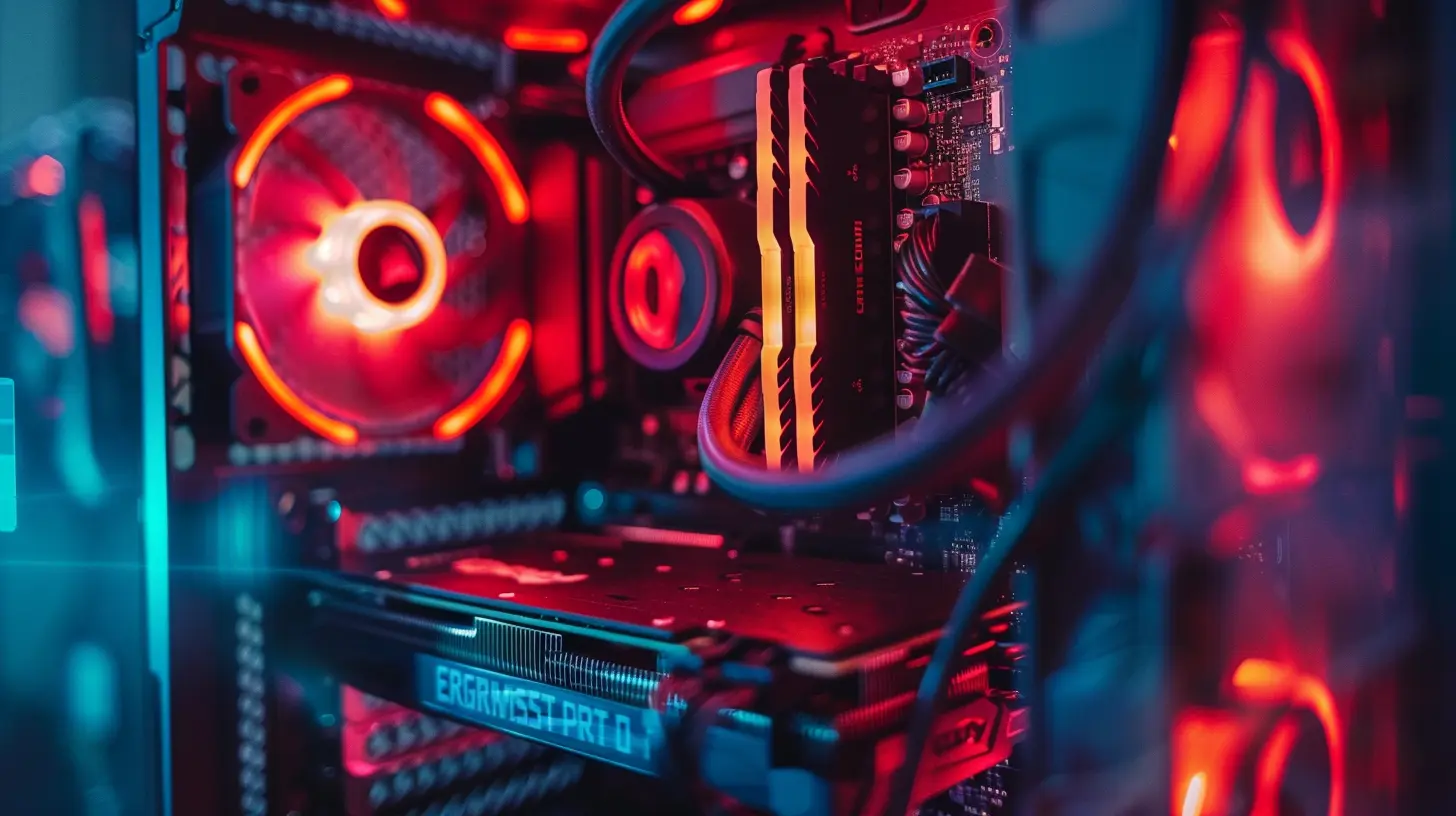
How Often Should You Clean Your Gaming PC?
This depends on a few things—like where you live, how dusty your room is, whether your PC is on the floor, and how often you use it.Here’s a quick cheat sheet:
- Light cleaning (dusting filters, wiping surfaces): Every 2-4 weeks
- Internal dusting (fans, parts, insides): Every 3-6 months
- Full deep clean (taking apart fans, repasting CPU): Once a year
If you have pets, live in a dusty area, or smoke near your setup, you may want to clean it more often.
Gear You'll Need for a Safe Clean-Up
First things first — don’t grab just any household cleaner and spray it inside. That’s a one-way ticket to short-circuit city. Instead, prep your cleaning arsenal with these PC-friendly tools:- Can of compressed air (your best friend)
- Soft microfiber cloth
- Small brush or anti-static brush
- Isopropyl alcohol (90% or higher)
- Cotton swabs
- Screwdriver set
- Anti-static wrist strap (if you're extra cautious)
Avoid vacuum cleaners unless you're using one specifically made for electronics. Static electricity and PC components = bad combo.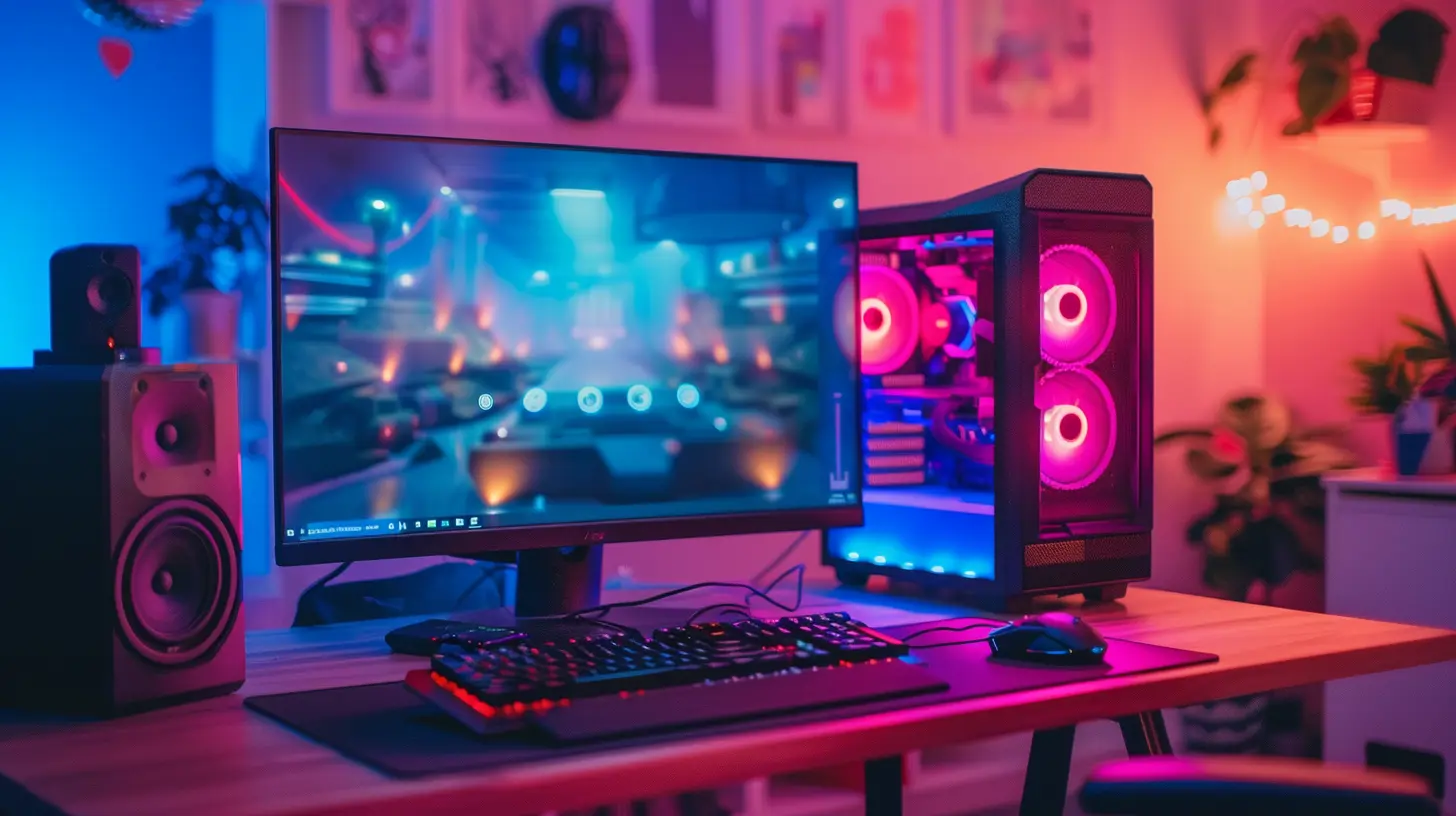
Pre-Cleaning Checklist
Hold up! Before you start blowing air everywhere, do these things first:1. Power down your PC – Shut it down completely and unplug the power cable.
2. Unplug everything – Monitor, keyboard, mouse, headset... everything.
3. Ground yourself – Static electricity can fry your components. Touch a metal surface or use that anti-static wrist strap.
4. Move to a well-lit, ventilated area – Cleaning in a dark, cramped space? No thanks.
Alright! Now let’s get our hands dirty.
Step-by-Step Guide to Cleaning Your Gaming PC
1. Open the Case
Every PC case is a little different, but most have thumbscrews or regular screws at the back. Remove the side panel (usually tempered glass or metal). If your case has filters, remove those for later cleaning.Pro tip: Take a photo of the inside before you start messing around. It helps when you need to plug stuff back in.
2. Clean Dust Filters and External Surfaces
Start with the dust filters. These are usually magnetic or slide-out mesh pieces on the front, top, or bottom of your case. Gently brush or rinse them with water, let them air dry, and reattach them once dry.Use a microfiber cloth to wipe down the outside of the case. Make it shine like a new PS5 on launch day!
3. Blow Out the Dust with Compressed Air
Time for the fun part! Grab your can of compressed air and start blasting. Keep the can upright (tilting it can spray liquid), and give short bursts.Focus on:
- CPU cooler and fan
- GPU fans and heatsinks
- PSU intake (be gentle)
- RAM slots
- Case fans
- Motherboard nooks and crannies
Hold the fan blades still with a pencil or cotton swab. Letting them spin freely during cleaning can damage the motor.
You’ll be amazed (and slightly horrified) at how much dust flies out. Don’t forget to clean the bottom of the case—it’s where dust parties usually happen.
4. Wipe Down Components
With a microfiber cloth or soft brush, gently wipe the surfaces of your GPU, motherboard, and PSU. For stubborn grime or sticky stuff, dab a cotton swab in isopropyl alcohol and gently clean.Avoid touching the motherboard pins or ports unless you absolutely need to. One wrong poke, and it's game over.
5. Check Cables and Airflow
Take this chance to do a bit of tidy-up. Are your cables blocking airflow? Use zip ties or Velcro straps to organize cords and open up those air channels.Good airflow = better temps + quieter performance.
6. Reassemble and Boot Up
Once everything's clean and dry, it’s time to put it all back together.- Reattach filters and side panels
- Plug in cables (use that reference photo if you need)
- Power up and listen… is your PC whisper-quiet now? Beautiful.
Before booting into your game, run a quick stress test or temperature monitoring app (like HWMonitor or CoreTemp) to make sure your system is running cool and stable.
Deep Maintenance: Going the Extra Mile
If you're feeling brave or your temps are still high, you might want to go a step further:? Reapplying Thermal Paste
Over time, the thermal paste between your CPU and cooler can dry out. Replacing it can reduce temperatures dramatically.- Clean off old paste with isopropyl alcohol
- Apply a pea-sized amount of new thermal paste
- Reseat your cooler and tighten
Only do this if you're confident — improper on/off of the cooler can cause more harm than good.
? Water Cooling Maintenance
If you’re running a custom loop, don’t forget to:- Check coolant levels every few months
- Replace coolant yearly
- Monitor for leaks or residue
Most AIO (all-in-one) coolers are maintenance-free, but give the radiator a clean now and then.
Maintenance Tips to Keep Your Rig in Top Shape
Want to avoid another cleaning session for a while? Here's how:- Keep your setup elevated – Don’t place your PC directly on a carpet.
- Run your fans strategically – Intake at the front, exhaust at the back/top.
- Close windows during dusty days – Simple but effective.
- Use positive air pressure – More intake than exhaust fans helps keep dust out.
- Set up a regular cleaning schedule – Add it to your calendar or gaming routine.
Signs Your PC Might Need a Clean-Up
Not sure when it’s time to clean again? Watch out for these symptoms:- Fans are louder than usual
- System feels hot to the touch
- Games stutter or throttle under load
- Random shutdowns or blue screens
- Visible dust in or around the case
If your gaming experience starts going downhill, don’t blame the devs just yet — your PC might just need a little TLC.
Final Thoughts: Treat Your Gaming PC Like a Partner in Crime
Your gaming PC is more than just hardware—it's your portal to infinite worlds, victory royales, emotional stories, and late-night sessions with friends. Taking care of it doesn’t just make it shine — it ensures it stays reliable for years to come.With a little regular cleaning and maintenance, your rig will keep running as smooth as a speedrun through your favorite game.
So grab that can of compressed air, put on your favorite playlist, and show your PC some love. It’ll thank you with buttery-smooth frame rates and whisper-quiet performance.
Now go on — you’ve got cleaning to do!
all images in this post were generated using AI tools
Category:
Gaming HardwareAuthor:

Lana Johnson
Discussion
rate this article
1 comments
Heath Myers
Great tips! Keeping my setup clean helps.
June 13, 2026 at 2:28 PM
Lana Johnson
Thanks! A clean setup really makes a difference in performance and longevity. Happy gaming!