VR Headset Requirements and Setup Tips
16 July 2026
Virtual reality (VR) isn’t just science fiction anymore. It’s real, it’s here, and it’s pretty awesome. From jaw-dropping immersive games to virtual travel experiences, VR is transforming entertainment as we know it. But hold up—before you dive into the metaverse, there's a bit of homework to do. Getting your VR headset up and running (and keeping it running smoothly) does take some prep work.
In this guide, we’re breaking down everything you need to know about VR headset requirements and setup tips. Whether you're eyeing an Oculus Quest 2, HTC Vive, Valve Index, or another headset, we’ve got you covered.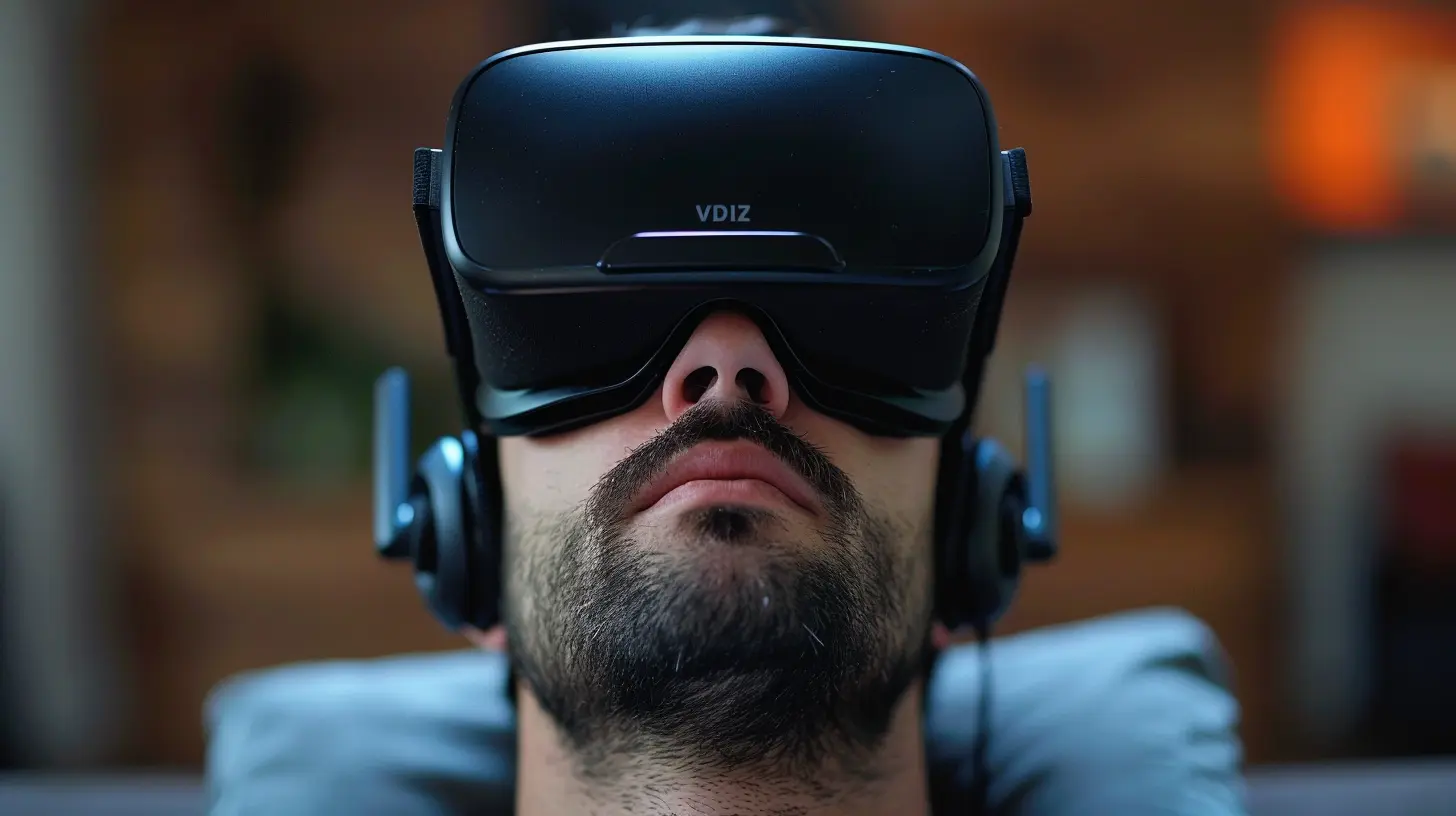
Table of Contents
- VR Headset Requirements — What You Actually Need- Minimum vs. Recommended Specs: What's the Difference?
- Do You Need a VR-Ready PC?
- Room Setup — Space Matters More Than You Think
- Installing Your VR Headset – Step-by-Step Setup Tips
- Wireless vs. Wired VR Headsets
- Tips to Maximize Your VR Experience
- Common Setup Mistakes and How to Avoid Them
- Final Thoughts
VR Headset Requirements — What You Actually Need
Let’s start with the basics. Not all VR systems are created equal, and the kind of gear you need totally depends on which headset you pick.Some VR headsets, like the Meta Quest 2, are all-in-one—meaning you don’t need a fancy gaming PC to use them. Others, like the Valve Index or HTC Vive Pro, need to be connected to a beefy computer to perform properly.
Here’s a general checklist of what you might need:
- A VR-capable PC or console (for tethered headsets)- A compatible VR headset (duh!)
- VR controllers (included with most systems)
- Base stations or external sensors (depends on the headset)
- Enough physical space (ideally 6.5ft x 6.5ft)
- Stable Wi-Fi (for updates, downloads, and streaming)
Pretty simple on paper, right? The real challenge is making sure your PC or room doesn’t bottleneck your entire VR experience.
Minimum vs. Recommended Specs: What's the Difference?
A lot of people see "minimum requirements" and go, “Cool, I'm good.” But let’s be honest—running a VR game on minimum specs is like trying to run a marathon in flip-flops. It’s doable…but painful.Let’s break it down:
| Component | Minimum Specs | Recommended Specs ||----------------|-------------------------------------|----------------------------------------|
| CPU | Intel i5-4590 / AMD Ryzen 5 1500X | Intel i7 / AMD Ryzen 7 or better |
| GPU | NVIDIA GTX 970 / AMD Radeon RX 480 | NVIDIA RTX 3060 / AMD RX 6800 |
| RAM | 8GB | 16GB+ |
| USB Ports | 1x USB 3.0 | 2x USB 3.0 or more |
| Operating System | Windows 10 | Windows 10/11 |
If you’re on a minimum spec rig and things get choppy, don’t say no one warned you. VR needs speed and precision—lag just ruins the immersion.
Do You Need a VR-Ready PC?
If you’re going the tethered route (Valve Index, HTC Vive, Oculus Rift S), then yep, a VR-ready PC is a must. You’ll need a high-end graphics card, solid CPU, and a good chunk of RAM.Pro tip: Use tools like SteamVR Performance Test to check if your PC is ready for VR. It simulates VR workload and gives you a friendly "yes/no" answer.
But if you're using an all-in-one headset (like Quest 2 or Pico 4), you don’t need a PC—unless you plan on using PCVR streaming (more on that later).
Room Setup — Space Matters More Than You Think
Seriously, don’t ignore your play space. It can make or break your VR sessions.Here’s what you want to aim for:
- Minimum Clear Area: Around 6.5 feet by 6.5 feet (2m x 2m)- No Obstacles: Move furniture, avoid ceiling fans, keep pets/kids out
- Soft Flooring: Carpet is better than tile if you take a tumble
- Good Lighting: Not too bright, but not pitch-black either
Oh, and PLEASE mount your sensors or base stations securely. Knocking one over mid-game? Not fun.
If you’re tight on space, consider stationary or seated VR experiences. Games like Beat Saber or Superhot VR can still rock in smaller areas.
Installing Your VR Headset – Step-by-Step Setup Tips
Alright, ready to plug it all in? Don’t worry, setup sounds scarier than it is.Here’s a simplified 7-step VR setup guide:
1. Unbox Everything
Check that you’ve got all the parts—headset, controllers, cables, maybe base stations. Don’t toss any small adapters by accident!2. Install Software
Download the VR platform software—like SteamVR, Oculus app, or VIVEPORT. These tools manage your headset’s updates and settings.3. Connect Your Headset
Plug in your headset to the PC or console. Tethered headsets often use a combo of DisplayPort, USB 3.0, and power cables.4. Set Up Tracking
If your headset uses external sensors, mount them above eye level in opposite corners for best coverage. Wireless or inside-out tracking headsets (like the Quest) don’t need external sensors.5. Calibrate Your Play Area
Follow the on-screen setup to define your play space. You’ll “draw” your boundaries so the headset knows when you're near the edge. Super important for avoiding faceplants.6. Sync Controllers
Turn on your controllers. Most systems pair automatically, but some may need to be manually linked.7. Tweak Visuals and Comfort
Adjust your headset straps, IPD (Interpupillary distance), and headset clarity until everything looks sharp and feels comfy. No shame in taking your time here!Boom! You’re ready to dive head-first into virtual reality.
Wireless vs. Wired VR Headsets
So, what’s better—wired or wireless?Wired VR:
- Pros: Best visuals, low latency, higher performance- Cons: You're tethered (literally), and cables are annoying
Wireless VR:
- Pros: Ultimate freedom of movement, great for casual gaming- Cons: Slightly less visual fidelity, battery-dependent
Some headsets like the Meta Quest 2 offer both. Use Air Link or Virtual Desktop for wireless PCVR, or plug in with a USB-C cable for a wired experience.
Tips to Maximize Your VR Experience
You’ve got your headset up and running—great! But let’s take it up another notch. Here’s how to make your VR sessions smooth, fun, and frustration-free.1. Keep Your Lenses Clean
Use microfiber cloths (no paper towels!) to gently clean your lenses. Smudges can ruin your visual fidelity.2. Manage Cables Smartly
For wired setups, use ceiling cable management or velcro straps to keep cords off the floor. Trip-proof your space like a pro.3. Charge Everything
Keep your controllers and headset charged between sessions. Nothing kills the vibe like “controller battery low” mid-boss fight.4. Adjust IPD Properly
Poor IPD settings can cause blurry visuals or motion sickness. Take time to find your sweet spot.5. Ventilate The Room
VR can make you sweat. Use a fan or crack a window open to keep cool during long sessions.6. Organize Your Games
Use folders or favorites to keep your VR library sorted. That way, you’re not scrolling for 15 minutes before playing.Common Setup Mistakes and How to Avoid Them
We’ve seen it all—and trust me, most VR mishaps are totally preventable. Here are some frequent goofs and how to steer clear:❌ Mistake: Wrong USB port
Some headsets require USB 3.0. Plugging into a slower port can cause performance issues.✅ Fix: Check your motherboard labels or manual before connecting.
❌ Mistake: Misplaced Base Stations
Putting your base stations too low or too close ruins tracking.✅ Fix: Mount them at head height or higher, facing down at an angle.
❌ Mistake: Ignoring Boundaries
Running into walls or tripping over stuff mid-game isn’t just embarrassing—it’s dangerous.✅ Fix: Set up proper Guardian or Chaperone boundaries.
❌ Mistake: Poor Lighting
Too much light washes out tracking; too little confuses cameras.✅ Fix: Aim for diffuse, consistent lighting. Natural light is fine, just avoid direct sunlight.
Final Thoughts
Setting up a VR headset might feel overwhelming at first, but once everything’s in place, you’re in for some incredible experiences. From shooting zombies in high-res to painting in 3D space, VR is like stepping into a whole new world.Take your time with setup, double-check your specs, and create a safe space to play. The better your setup, the smoother and more immersive your virtual adventure will be.
So... you ready to step into another reality?
all images in this post were generated using AI tools
Category:
Gaming HardwareAuthor:

Lana Johnson