How to Test and Benchmark Your Gaming Hardware
26 June 2026
So, you've dropped a small fortune on your gaming setup. You’ve picked the fanciest GPU this side of the Milky Way, your CPU gives off more heat than the sun (but alas, no RGB), and your RAM could probably rival a NASA processing rig. But now comes the real challenge—figuring out if all that shiny gear is actually pulling its weight. Welcome to the mysterious realm of benchmarking.
Testing and benchmarking your gaming hardware isn’t just for tech YouTubers with ten different rigs and a sponsor for every frame per second (FPS). Nah, it’s for all of us. Whether you’re trying to squeeze out every last drop of performance juice or just wanna prove to your skeptical friends that yes, your rig is faster than theirs, this guide’s got your back.
What Even Is Benchmarking—And Why Should You Care?
Let’s put it this way: benchmarking is the gaming world’s equivalent of bragging rights. It’s like flexing muscles you didn’t know you had. It tells you how your system performs, what’s holding you back, and where you can crank things up a notch (or twelve).Think of it as going to the gym for your PC—except instead of lifting weights, it's lifting frame rates. And instead of sweat, there are just tears when you realize your RTX 4090 is bottlenecked by your 2008-era CPU.
Why Benchmarking Isn't Just For Nerds Anymore
Back in the day, benchmarking was something only the “build-it-yourself” folks with magnifying glasses and thermal paste on their glasses did. But today? With games becoming more demanding and hardware more expensive, knowing how your system performs isn't just smart—it's survival.Whether you're chasing 240 FPS in Valorant or just trying to make Cyberpunk 2077 not look like a slideshow, benchmarking helps you get there.
Step 1: Know What You’re Testing (Seriously, Don’t Skip This)
First things first—stop, take a breath, and figure out what you’re actually testing.- CPU (Central Processing Unit): This is your PC's brain. It handles game logic, physics, AI—you know, all the stuff that makes games more than just moving pictures.
- GPU (Graphics Processing Unit): The Picasso of your setup. It’s responsible for turning code into stunning visuals (or potato graphics, depending on your settings).
- RAM (Random Access Memory): Short-term memory for your system. Not enough of this and your games will stutter harder than a bad Wi-Fi connection.
- Storage (SSD/HDD): Affects load times and texture streaming. Still using an old HDD? It's basically like trying to game while dragging a log behind you.
Pro Tip: Don’t benchmark everything at once. Focus on individual parts to figure out which one's your system's weakest link—there’s always that one freeloading component. ?
Step 2: Pick Your Poison—Benchmarking Software That Doesn’t Suck
Not all benchmarking tools are created equal. Some are sleek and modern. Others look like they crawled out of a 2004 forum thread wearing cargo shorts. Here are some fan favorites that won’t waste your time or infect your rig with mystery toolbars.For CPUs:
- Cinebench R23: The classic. It renders images to measure CPU performance. The higher the score, the better your digital Picasso brain is.- Geekbench: Gives you a quick overview with multi-core and single-core scores. Easy numbers. Minimal brain required.
For GPUs:
- 3DMark Time Spy / Fire Strike: The holy grail of GPU benchmarks. Time Spy stresses DirectX 12 GPUs like no one else. It’s like a boot camp for your graphics card.- Unigine Heaven/Valley/Superposition: Gorgeous scenes that punish your GPU. Watch your frame rate crumble in 4K and cry happy tears when it doesn’t.
RAM & Overall System:
- AIDA64: Gives you every detail about your system, from RAM latency to temperatures. Basically a hardware geek’s playground.- UserBenchmark: Controversial but useful for quick, across-the-board checks. Just ignore the fact it kinda hates AMD—awkward.
Storage:
- CrystalDiskMark: Measures read/write speeds. So simple a caveman could use it. Load time matter? You’ll wanna keep an eye on this.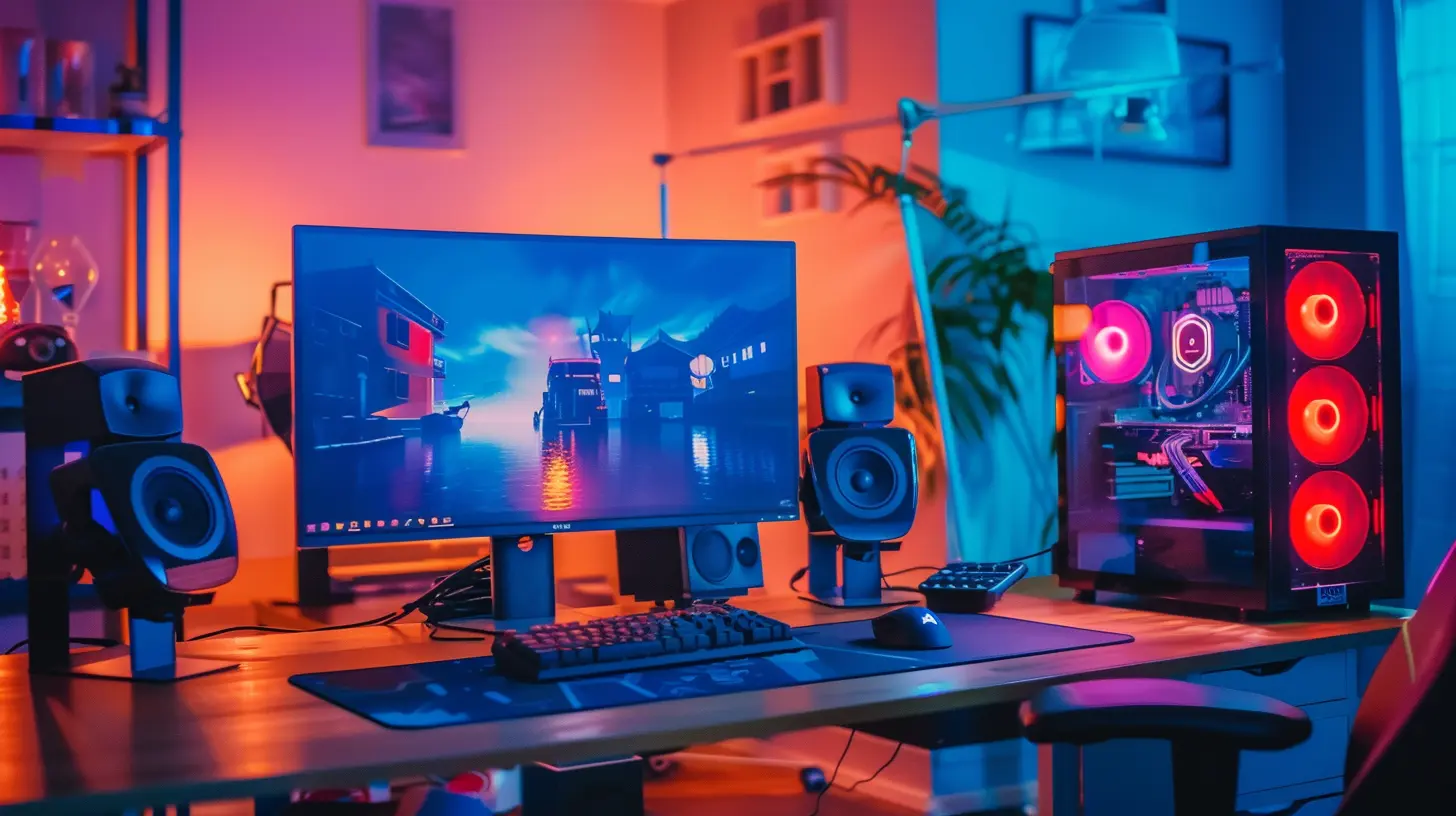
Step 3: Run the Tests (And Try Not to Panic When the Fans Get Loud)
Alright, deep breath—it’s go time.Tips Before You Start:
- Close other apps. Spotify won't make your FPS go up, Karen.- Set fans to turbo mode—your hardware will be hot and bothered.
- Plug in your laptop if you're testing portable performance. Yes, some people forget. Yes, it matters.
Now go ahead and run that benchmark. Watch the stress tests unfold like a dramatic Netflix thriller. Listen to your PC scream melodramatically like it's in a Michael Bay movie. It's all part of the fun.
Step 4: Interpret the Numbers (AKA: What the Heck Do These Scores Mean?)
Alright, you’ve got your scores. Let’s play doctor and diagnose your system.- Low CPU scores? Your processor’s probably reaching for retirement. Check temps—thermal throttling is a stealthy little gremlin.
- GPU underperforming? Are the drivers updated? Is it running in performance mode? Maybe it’s just shy, who knows.
- RAM scores weak? You may be running single-stick RAM. Double the sticks = double the fun (and performance).
- Storage crawl speeds? Your HDD is probably older than Blockbuster. It’s 2024, friend. Treat yourself to an SSD.
Use Comparison Sites
Compare your numbers with others using the same hardware. If someone else's 3060 Ti is outperforming yours by 30%, yeah—you might have a problem. Or maybe you're just special.Step 5: Game Benchmarks—Because Numbers Don’t Always Tell the Whole Story
Let’s get real. Synthetic benchmarks are nice, but they’re like beauty contests. They don’t always reflect real-world performance.Built-in Game Benchmarks Worth Checking Out:
- Shadow of the Tomb Raider- Red Dead Redemption 2
- Cyberpunk 2077 (If you're feeling brave)
- Assassin’s Creed Valhalla
These games have benchmarking modes built right in. Run a few tests, tweak the settings, and see how your system handles Ultra vs. Medium vs. “Please Don’t Explode” presets.
Third-Party FPS Monitoring Tools:
- MSI Afterburner + RivaTuner: Track temperatures, FPS, CPU/GPU usage—all in real-time. Plus, overlay graphs make you look 10x cooler.- CapFrameX: For those who want to dive into frame-time analysis and consistency. Nerdy. Beautiful.
Step 6: Tweak and Optimize—Because Who Doesn’t Like Free Frames?
Okay, now that you know where your setup stands, it’s time to juice it up.Simple Tweaks That Actually Work:
- Update Drivers: Because "I forgot" isn’t a valid excuse anymore.- Enable XMP in BIOS: Your RAM is crying out for help. Let it run at its rated speed.
- Adjust In-Game Settings: Medium textures vs. Ultra? You'll barely notice. But your FPS will.
- Disable Background Apps: Discord is lovely, but no, it doesn’t need to launch with Windows.
- Overclocking: Tread carefully here—overclocking can give you decent gains, but it’s also a shortcut to HeartAttackVille if you don’t know what you're doing.
Bonus Round: Show Off (Because Of Course You Should)
You’ve tested, scored, optimized, and maybe even applied a fresh layer of thermal paste like a battle-hardened tech warrior. Don't let that effort go unnoticed.- Post your results on Reddit or Discord groups (even if no one asked).
- Take screenshots of your 3DMark scores and make them your phone wallpaper. Priorities.
- Compare with your friends and laugh maniacally when you win.
Just remember: benchmarking isn’t a one-and-done thing. Every game, driver update, or Windows tantrum can change your performance. Make it a habit to benchmark once in a while—especially if things start feeling sluggish.
The TL;DR (Because We All Have Side Quests to Finish)
- Benchmarking tells you if your hardware is doing its job or slacking off.- Use tools like 3DMark, Cinebench, and Unigine for synthetic tests.
- Game benchmarks and FPS overlays show real-world performance.
- Interpret results like a detective—look for bottlenecks, low scores, or suspicious temps.
- Adjust settings, update drivers, and give your hardware a little pep talk.
- Repeat as needed (preferably with snacks).
Final Thoughts: It's Not Rocket Science—Just Pixels and Pride
Testing and benchmarking your gaming hardware sounds intimidating, but really, it’s just adult show-and-tell with extra steps. Think of it less like a chore and more like debugging your way to supremacy. You bought the gear—get the glory too.So grab a benchmark, crack open a cold beverage (or three), and see what your rig’s really made of. Just don’t blame me when your friend’s six-year-old laptop beats your mega rig in one benchmark. Some things just can’t be explained.
all images in this post were generated using AI tools
Category:
Gaming HardwareAuthor:

Lana Johnson
Discussion
rate this article
1 comments
Zevran Reilly
Great tips! Testing your gaming hardware is like tuning a car; you want everything running smoothly for the best experience. I always find that benchmarking reveals hidden potential. Plus, it's exciting to see those numbers improve! Can't wait to try out some of these methods myself. Happy gaming!
June 26, 2026 at 5:08 AM
Lana Johnson
Thanks for the feedback! Benchmarking really does bring out the best in our gear. Enjoy testing your setup and happy gaming!