How to Choose the Right Gaming Controller for PC
7 May 2026
So, you’ve decided to jump into the PC gaming world and want to upgrade your setup with a solid gaming controller. Good call! While the keyboard and mouse combo has its strengths, there are moments—especially with fighting games, racing simulators, and third-person adventures—where a controller just feels more natural. But with tons of options out there, choosing the right one can feel like trying to find a needle in a haystack. ?
Don’t worry, though. I’ve got your back. In this guide, we'll break down everything you need to know to pick the perfect gaming controller for your PC, without all the tech jargon and confusion. Let’s dive in!
Why Use a Controller on PC Anyway?
Before we get too deep, let’s address the big question: why even bother with a controller when you've got a perfectly good keyboard and mouse?Well, some games are simply better designed for controllers. Titles like FIFA, Rocket League, or Dark Souls feel smoother and more intuitive with analog sticks and trigger buttons. Plus, if you're coming from a console background, a controller can make the shift to PC gaming feel way less intimidating.
In short: different tools for different jobs.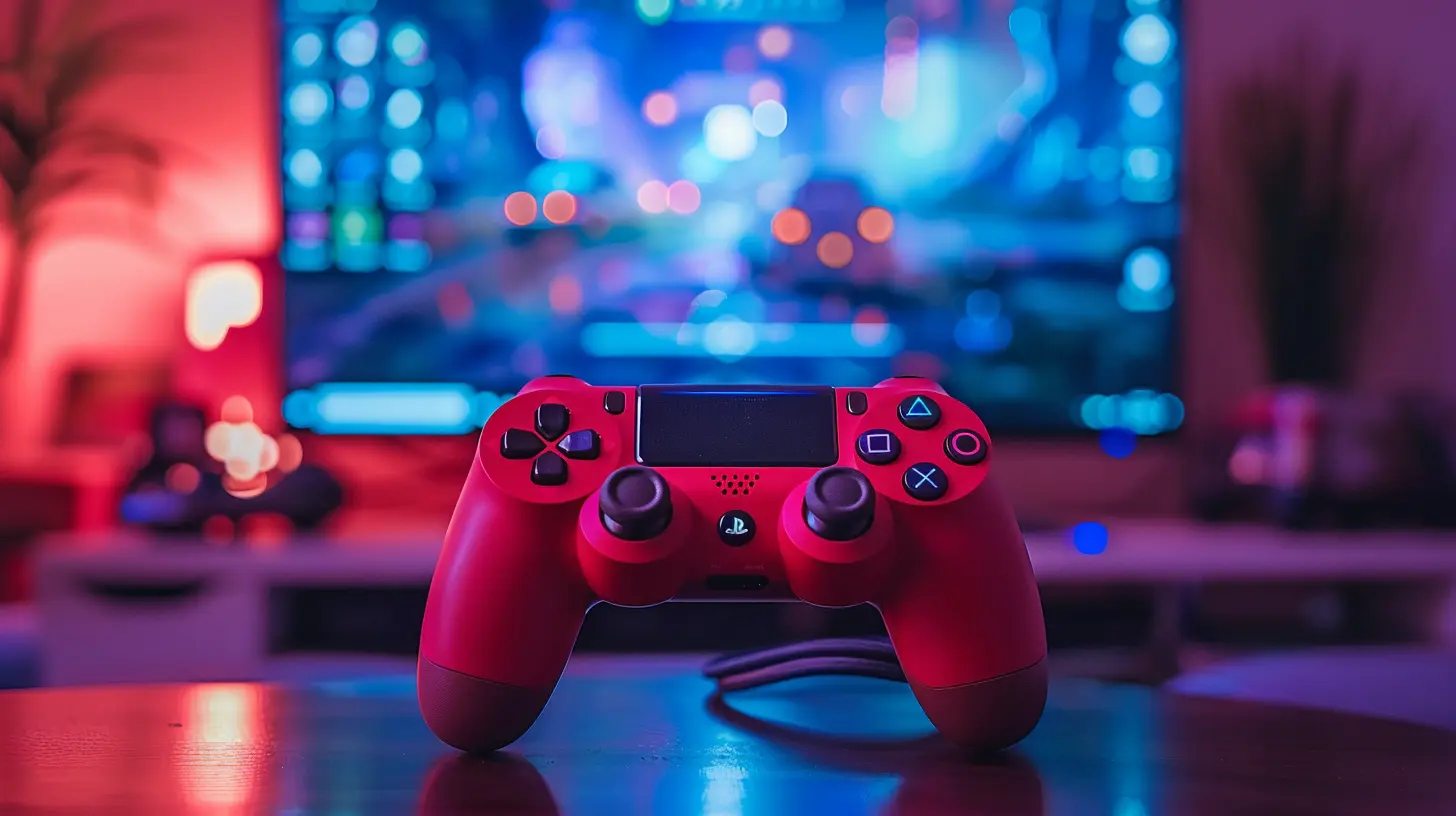
Things to Consider Before Buying a Controller
Alright, now let’s get into the meat of it. There’s no one-size-fits-all controller—but by asking yourself a few simple questions, you can figure out which one suits your gaming style like a glove.1. What Kind of Games Do You Play?
Start here. This is probably the most important question.- Fighting games? You’ll want a controller with responsive D-pads and smooth face buttons.
- Racing games or driving simulators? Look for analog triggers and comfortable grips.
- First-person shooters? While keyboard and mouse usually win here, if you prefer a controller, consider one with sensitive thumbsticks and fast response times.
Know your genre. It’ll guide the rest of your decision-making.
2. Wired or Wireless?
Now, let’s talk connections. This one mostly boils down to personal preference.- Wired Controllers: No battery hassle. Lower latency. Plug and play. But you’ve got that cable always dangling around.
- Wireless Controllers: Freedom from cables. Great for couch gaming or big setups. But they need recharging or swapping batteries.
If you’re someone who forgets to charge things (guilty as charged ?), wired might be safer. But if you're all about that freedom, wireless is where it's at.
3. Compatibility with Your PC
Here’s where it gets a little technical—but don’t sweat it.Windows is pretty forgiving these days. Most major controllers (Xbox, PlayStation, etc.) work right out of the box. But it's still good to check:
- Does the controller support XInput or DirectInput?
- XInput is Microsoft's API standard—most modern PC games are built around this, so Xbox controllers are usually the safest bet.
- DirectInput is older and used by some retro titles or generic controllers. It can be hit or miss with modern games.
Make sure whatever controller you buy plays nice with your system and your favorite games.
4. Ergonomics: How It Feels in Your Hands
You wouldn’t wear shoes that don’t fit, right? Same goes for controllers.Some people have smaller hands and prefer compact designs, like the Nintendo Switch Pro Controller. Others might want that beefier, full-hand grip of the Xbox Series X controller. If possible, try a few in your local store or borrow a friend’s. Comfort is king here.
5. Build Quality & Durability
Let’s face it—controllers take a beating. Whether you’re mashing buttons during a boss fight or rage-quitting after dying for the tenth time, your controller needs to hold up.- Look for reviews that talk about build quality.
- Check if the thumbsticks stay tight over time.
- Are the triggers responsive after months of use?
You don’t want something that falls apart after a few intense gaming sessions.
6. Customization Features
Do you like tweaking things? Some controllers let you re-map buttons, adjust stick sensitivity, or swap out parts entirely. If you like having control over your controls (pun intended), look for these features:- Programmable back paddles
- Hair trigger mode
- Swappable analog sticks or D-pads
These enhancements are often found in premium or "pro" controllers—and they can give you the edge in competitive games.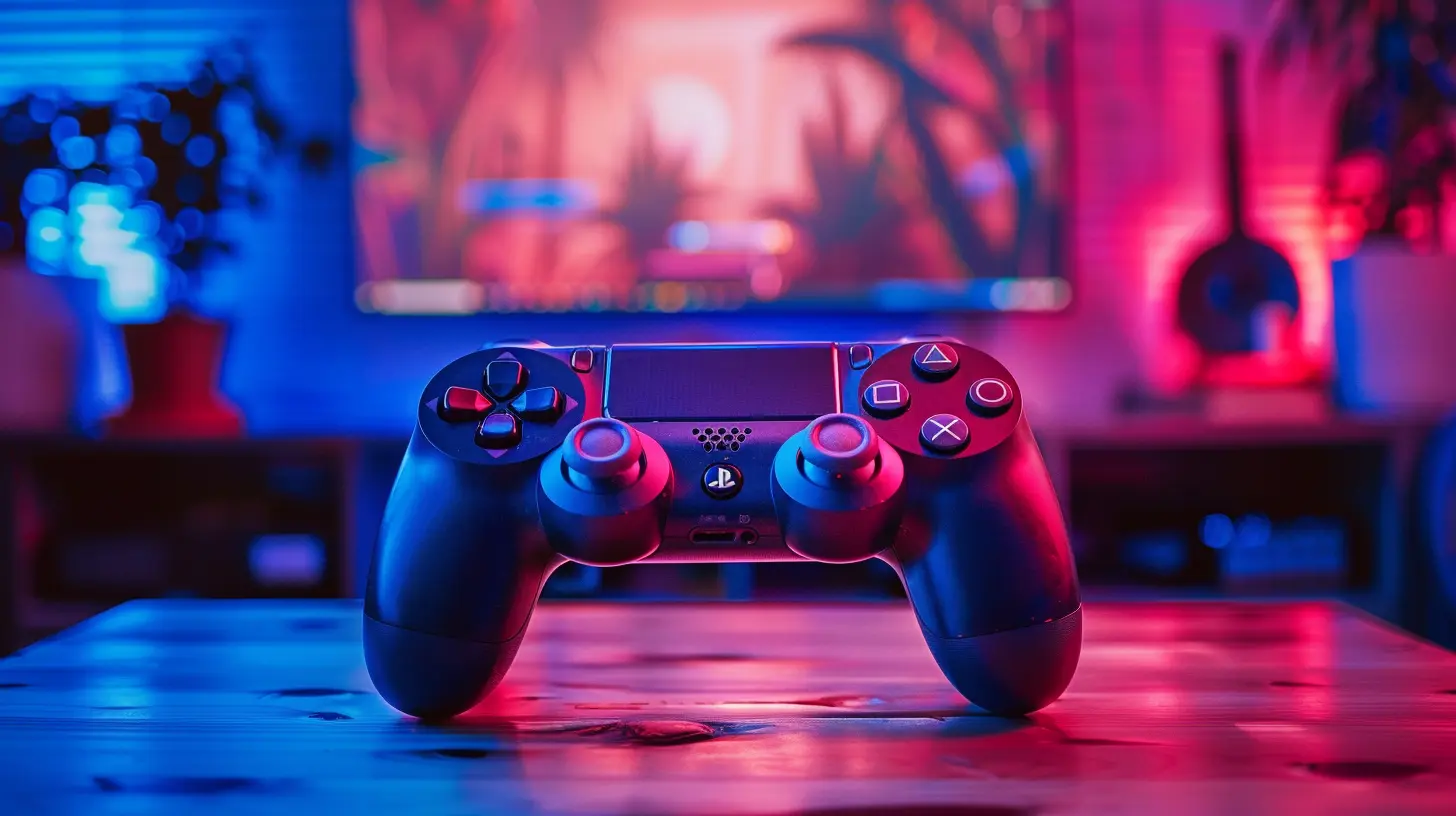
Popular Controllers for PC Gaming (And How They Stack Up)
Let’s go over some of the best options out there and why you might want (or not want) to grab one.? Xbox Wireless Controller (Series X/S)
Pros:- Seamless Windows compatibility (XInput)
- Comfortable grip for most hand sizes
- Great build quality
- Bluetooth support
Cons:
- Still uses AA batteries (unless you buy a rechargeable kit)
- No fancy features like back paddles
Best For: All-around gaming, especially shooters and action games.
? Xbox Elite Series 2 Controller
Pros:- High-end build
- Tons of customization (paddles, sensitivity, profiles)
- Rechargeable battery
Cons:
- Pricey
- May be overkill for casual players
Best For: Competitive gamers or those who want a premium feel.
? Sony DualSense (PS5 Controller)
Pros:- Haptics and adaptive triggers are game-changers
- Great ergonomics and design
- Bluetooth capable
Cons:
- Not all features (like adaptive triggers) work on PC
- Setup on Windows can require extra software
Best For: Third-person games, single-player titles, or if you're coming from a PlayStation background.
? Nintendo Switch Pro Controller
Pros:- Solid battery life (seriously, it's insane)
- Comfortable and well-built
Cons:
- Limited PC support (no XInput)
- Button layout might feel odd
Best For: Nintendo fans or casual gamers who want simplicity.
? 8BitDo Pro 2
Pros:- Retro design, modern features
- Customization through software
- Works with PC, Switch, and more
Cons:
- Not quite as premium as others
- Third-party support can be inconsistent
Best For: Indie gamers, retro fans, or those on a budget.
Budget vs Premium: Is the Price Worth It?
Here’s the million-dollar question (or, more like $50 to $200): how much should you actually spend?- Budget Controllers: Can totally work for casual gaming. Controllers from brands like PowerA, Logitech, or PDP provide decent performance without emptying your wallet.
- Mid-Range Controllers (Around $60): Usually hit the sweet spot of quality, comfort, and performance.
- High-End/Pro Controllers ($100+): Offer advanced features, better build quality, and customization—but only worth it if you’re a hardcore gamer or stream regularly.
If you're new to gaming, start with something affordable. You can upgrade later once you figure out what features you really care about.
How to Set Up a Controller with Your PC
Okay, you’ve picked your controller. What now?Most of the time, setup is straightforward:
1. Wired: Plug it into your USB port. Windows usually takes care of the rest.
2. Bluetooth Wireless:
- Put your controller in pairing mode.
- Go to Windows Settings > Devices > Bluetooth & other devices.
- Click “Add Bluetooth or other device” and connect.
If you're using something like a DualSense or Switch Pro Controller, you might need additional software (like DS4Windows or Steam’s controller settings) to get full functionality.
Final Tips and Takeaways
- There’s no such thing as the “best” controller—just the best one for YOU.- Think about your favorite games, your budget, and your play style.
- Comfort and compatibility should be top priorities.
- Don’t be afraid to test different controllers before you commit.
At the end of the day, your controller is an extension of your hands. It should feel natural, responsive, and fun to use. Find the one that makes your gaming experience smoother, not clunkier.
Wrapping Up
Choosing a gaming controller for PC doesn’t have to be a headache. Look at your gaming habits, set a budget you're comfortable with, and go from there. Whether you're casually kicking back or gearing up for competitive matches, the right controller can seriously elevate your gameplay.And hey, if you're still unsure—there’s no harm in trying a couple till one just clicks with you.
Game on!
all images in this post were generated using AI tools
Category:
Gaming HardwareAuthor:

Lana Johnson
Discussion
rate this article
2 comments
Cara Harper
Choosing a gaming controller is like picking a partner for a dance. You want one that feels right in your hands and can keep up with your moves. Just remember, if it starts glitching mid-battle, it's definitely not the one... time to break up!
June 26, 2026 at 4:57 PM
Lana Johnson
That's a great analogy! Comfort and responsiveness are key. If it can't keep up, it's time to find a better match.
Ezra McDaniel
Choosing the right gaming controller for PC is not just about comfort or compatibility. It's about enhancing your experience and finding that perfect connection between player and game, where every button press feels instinctive and every movement becomes an extension of yourself.
May 10, 2026 at 4:17 AM
Lana Johnson
Absolutely! The right controller can transform gameplay, making every action feel seamless and natural. It's all about that perfect synergy between you and the game.